Choose a world and language
Check the world name, game and status in the selector before taking any action. Language changes the panel language. A co-host may see fewer controls than the owner.
Start and join
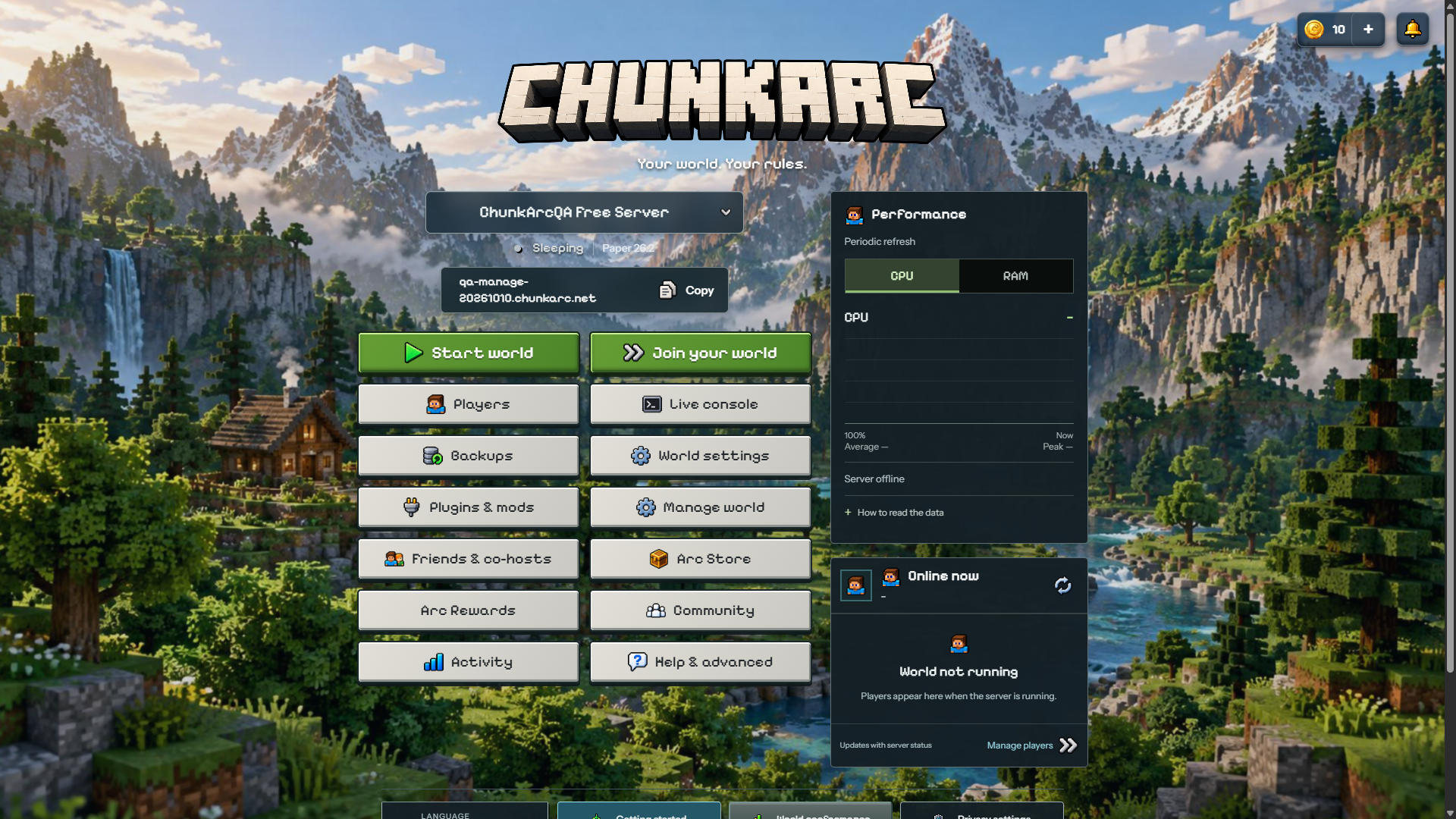
Choose Start world and wait for Online. If startup fails, read the first relevant console error before trying again. Join your world shows the exact address. Java clients use the full address in Multiplayer. A Java address alone does not provide Bedrock compatibility.
Players and permissions
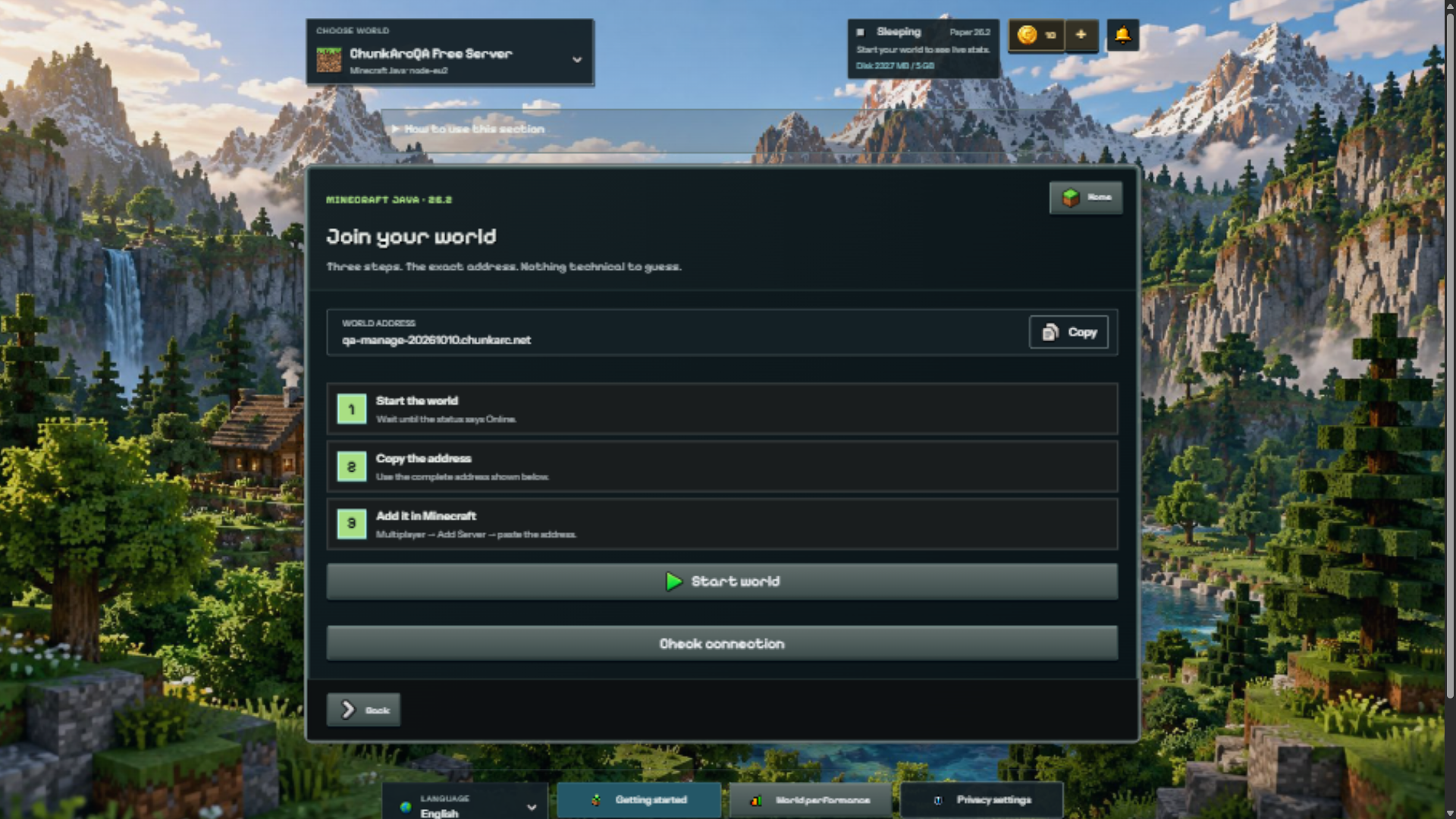
Players separates online players, invited players, operators and bans. Add your exact Minecraft name before enabling invite-only access. Operator permission is powerful and is not required to play. Ping and operator status need a compatible data source; a missing reading does not mean zero.
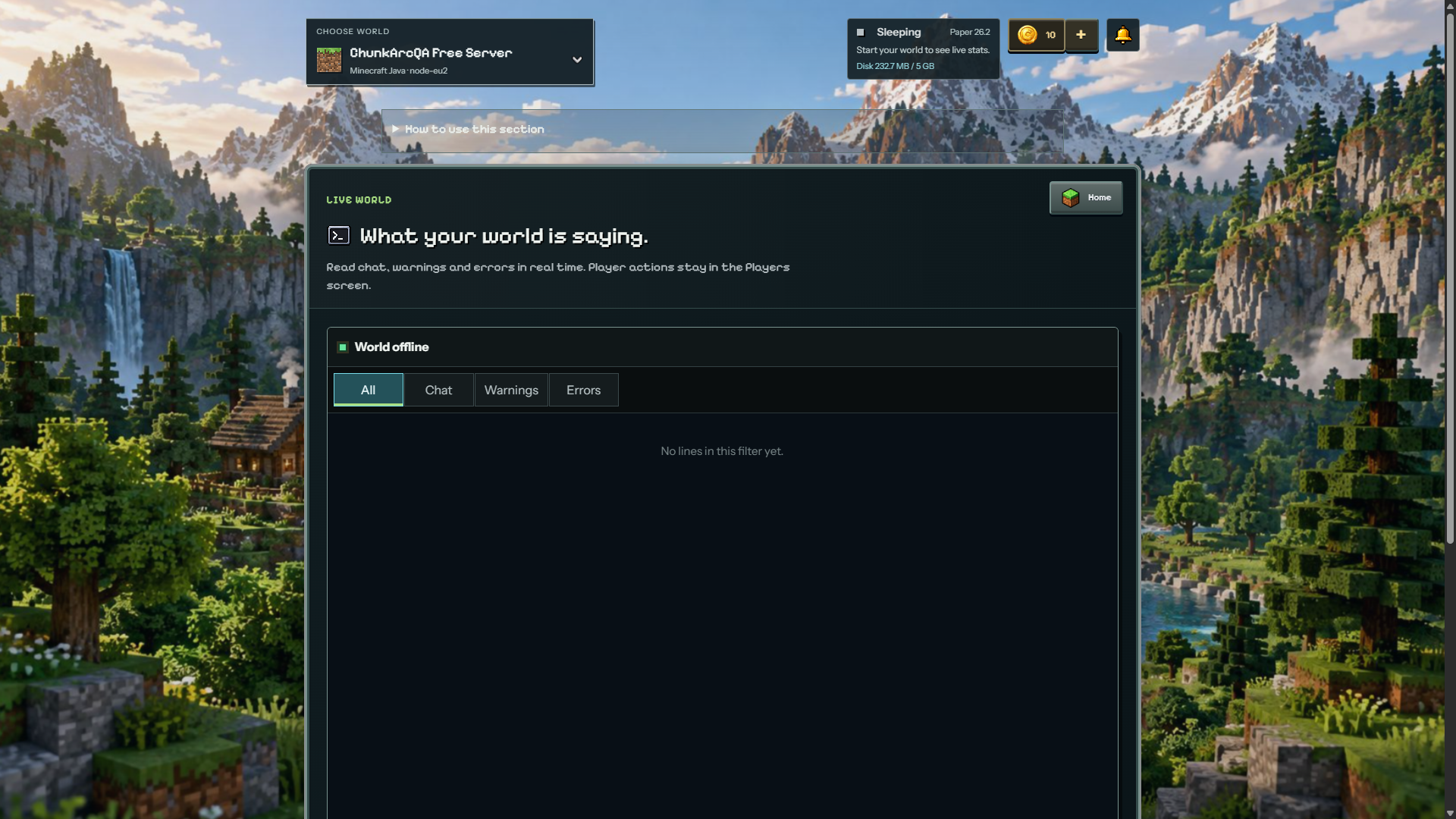
Live console
Use the all, chat, warning and error filters to find relevant lines. Commands are unavailable while the server is offline. For moderation, prefer Players. Never publish tokens, passwords or private chat from logs.
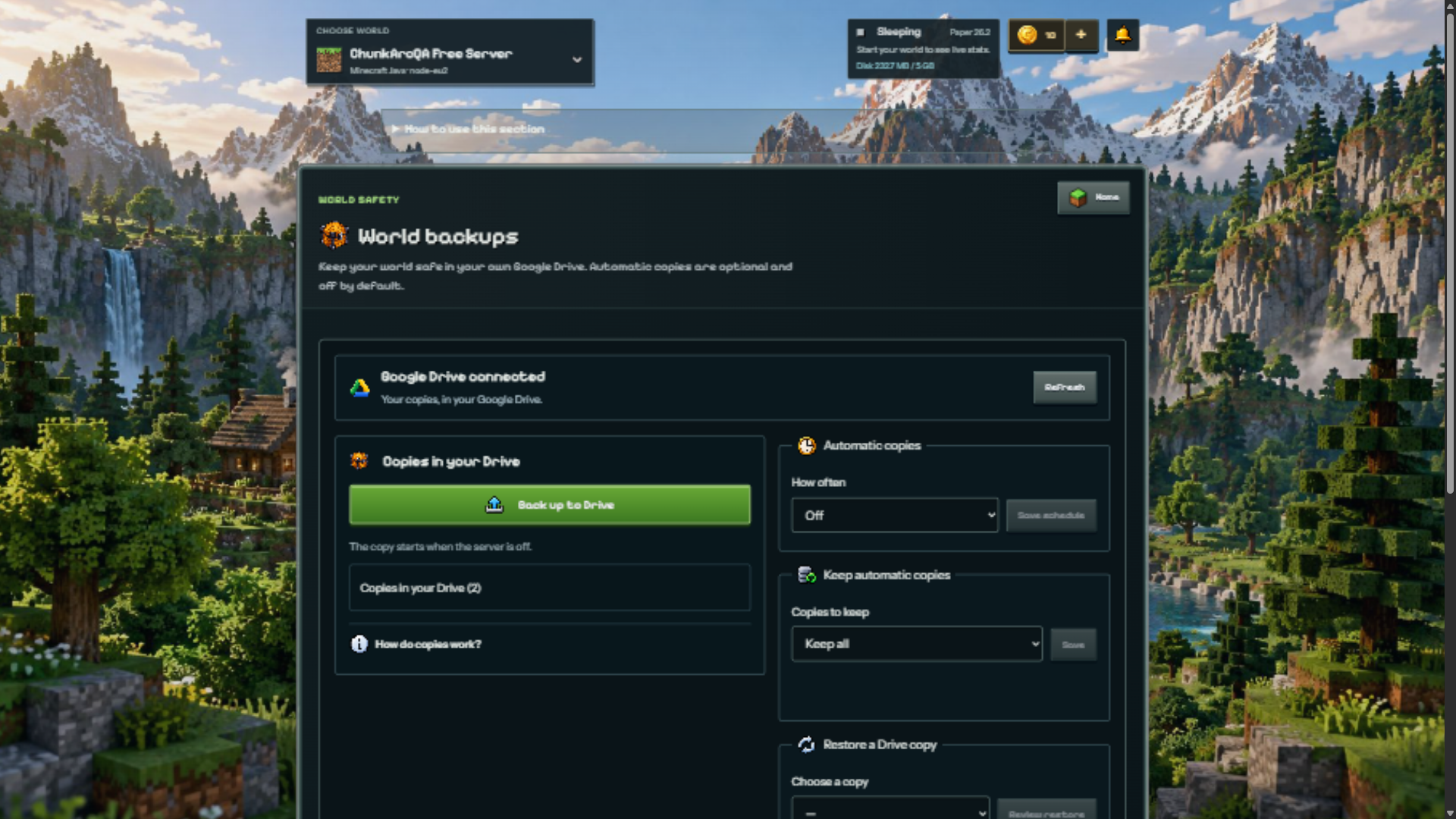
Google Drive backups
Open Backups. The pictured account already has Drive connected. Copies use your Drive space; the displayed limit is 5 GiB per copy. Create a copy while the server is off. Automatic schedules are optional and off by default; save both frequency and retention deliberately. Review the selected copy and what it replaces before confirming a restore.
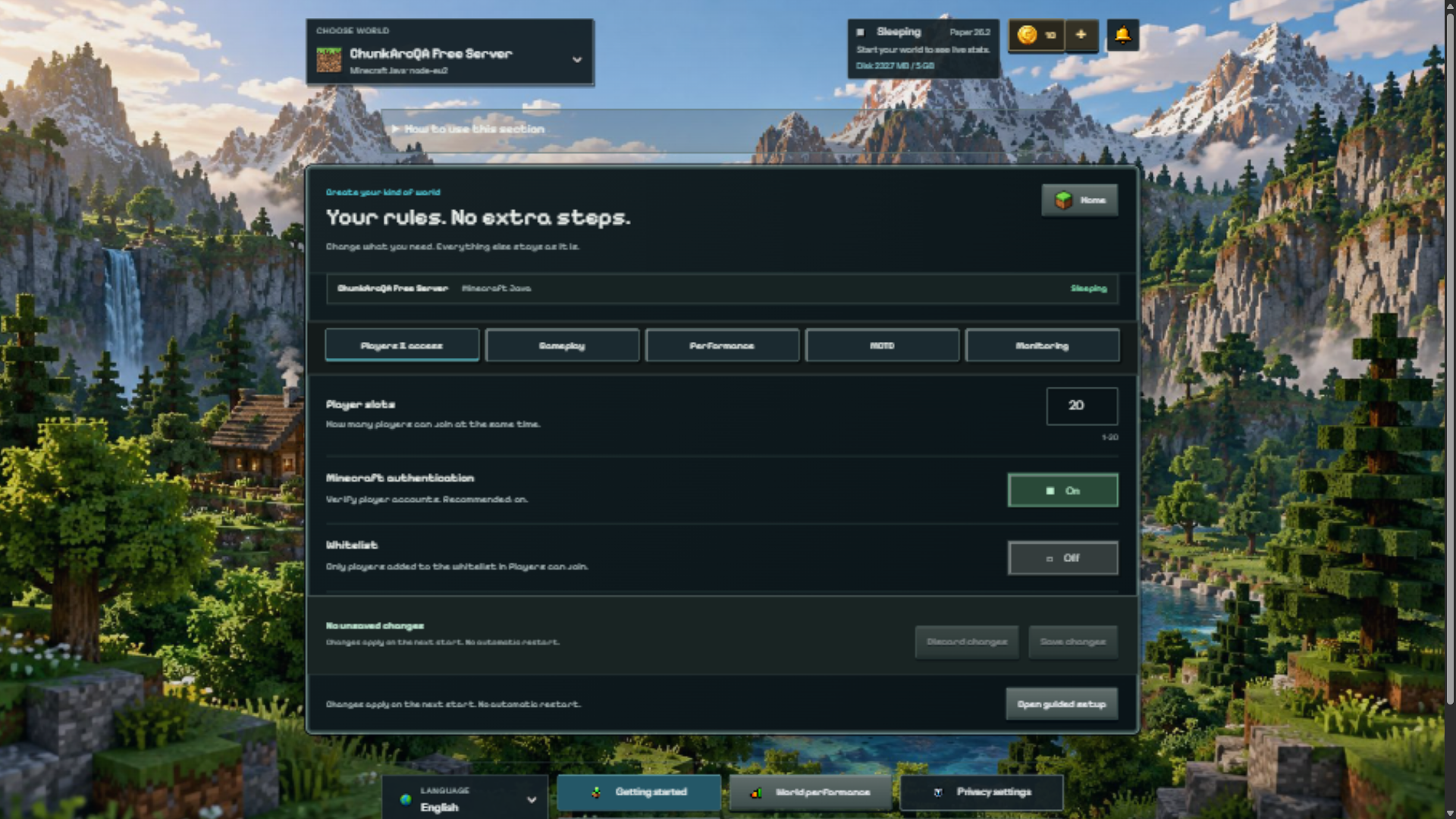
World settings
Change only what you need, then Save changes. Follow the next-start notice; saving does not automatically restart the server. Java tabs cover access, gameplay and performance. Larger view and simulation distances require more resources. Allowing flight does not itself give players flight.
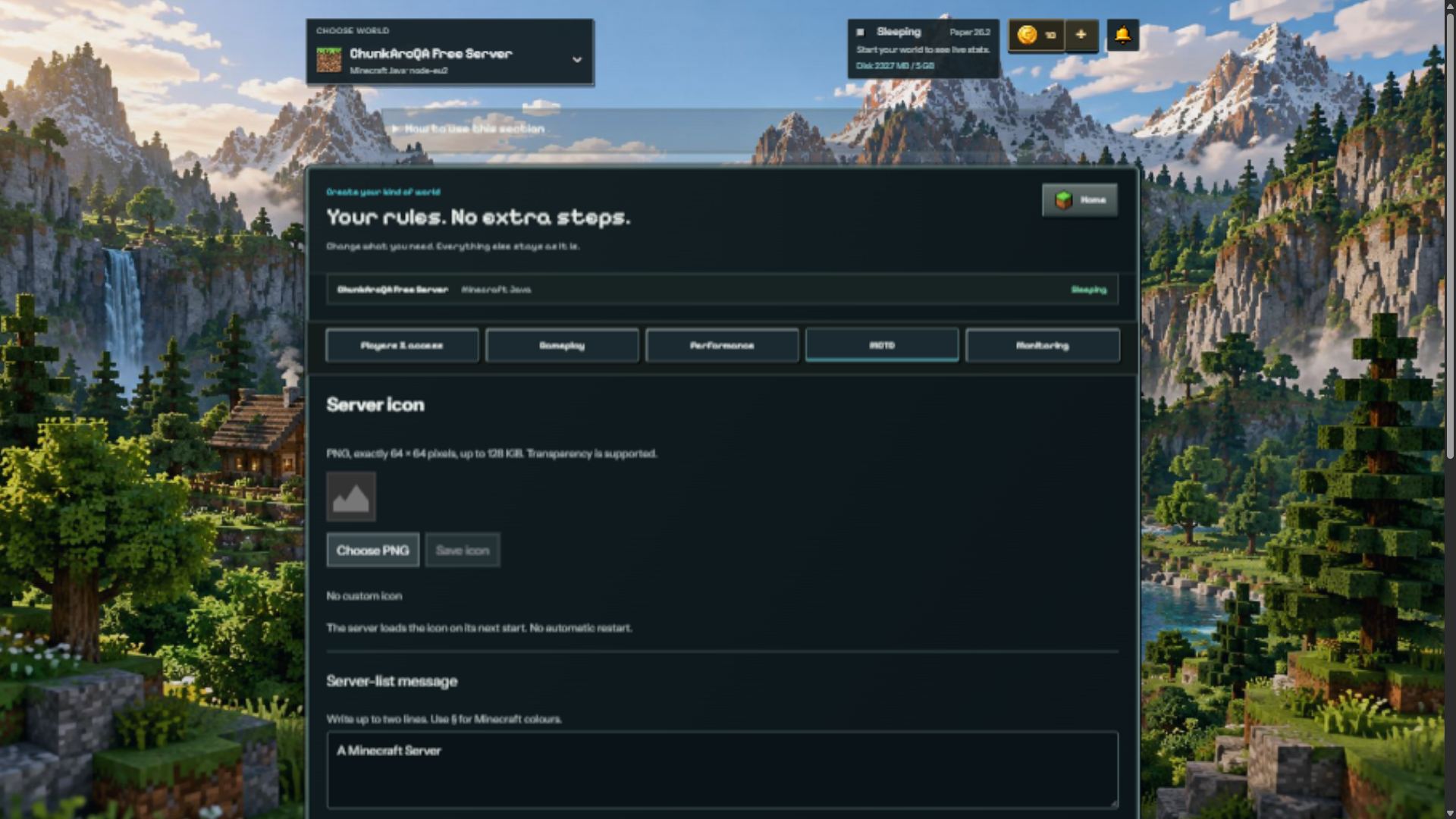
MOTD and server icon
On supported Java software, open World settings → MOTD. Edit up to two lines and check the preview. Use a 64 × 64 PNG icon, at most 128 KiB; transparency is supported. Save the icon separately. It loads on the next start. Player count and signal in the preview are demonstration values.
Performance and monitoring
CPU and RAM alone do not measure game lag or your connection. A dash means an unavailable reading, not zero. Advanced monitoring needs a compatible collector and your consent. The panel describes name, UUID, ping and operator data, not chat or inventories. Resource impact is not zero; TPS/MSPT are not available for every game.
Plugins and mods
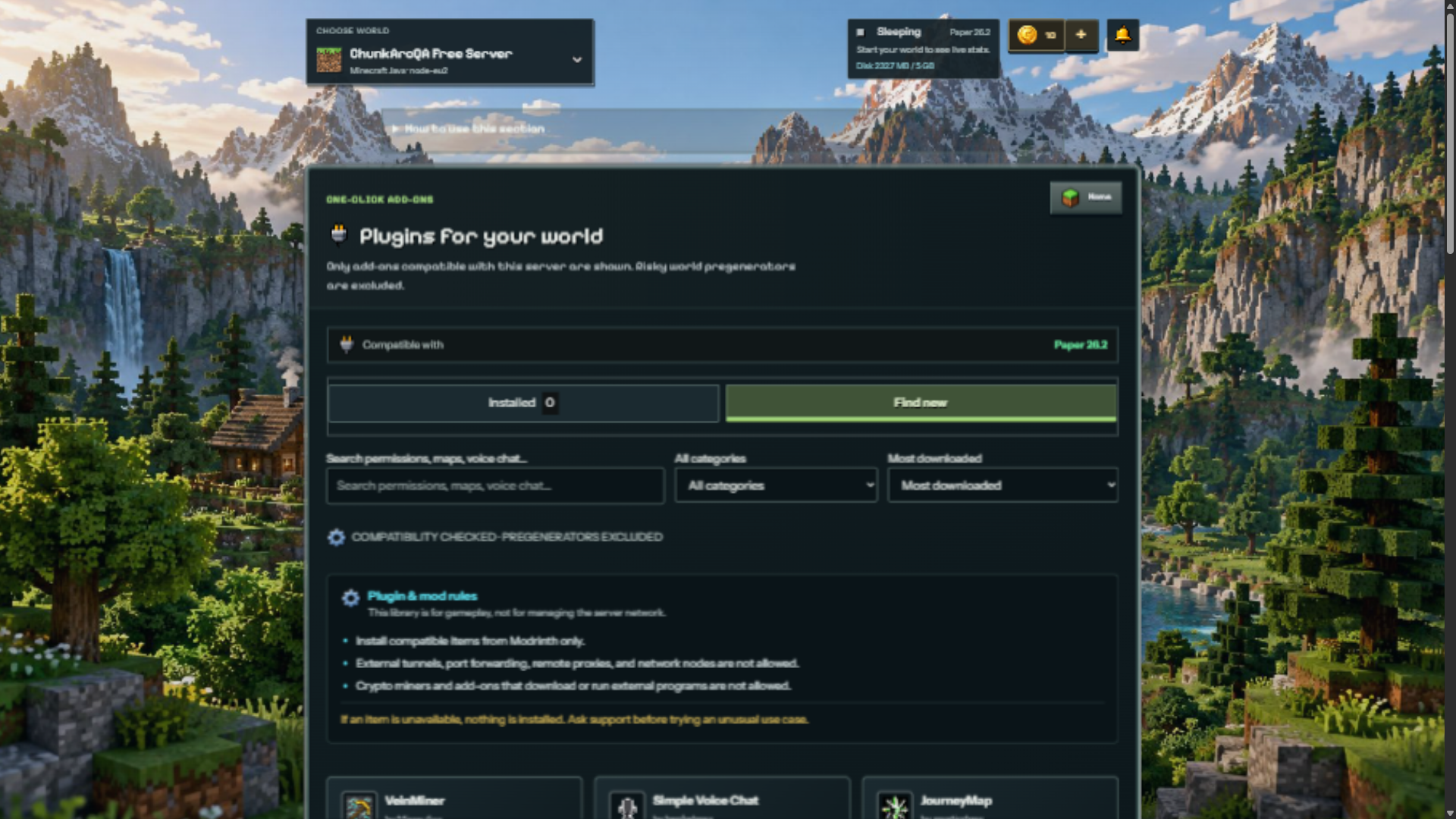
Paper uses plugins; Fabric needs compatible Fabric mods. Search the catalogue, check software, game version and dependencies, then read the installation review. New components load on the next start. Voice chat and Geyser configuration are separate tasks, not required for every installation.
World files and software
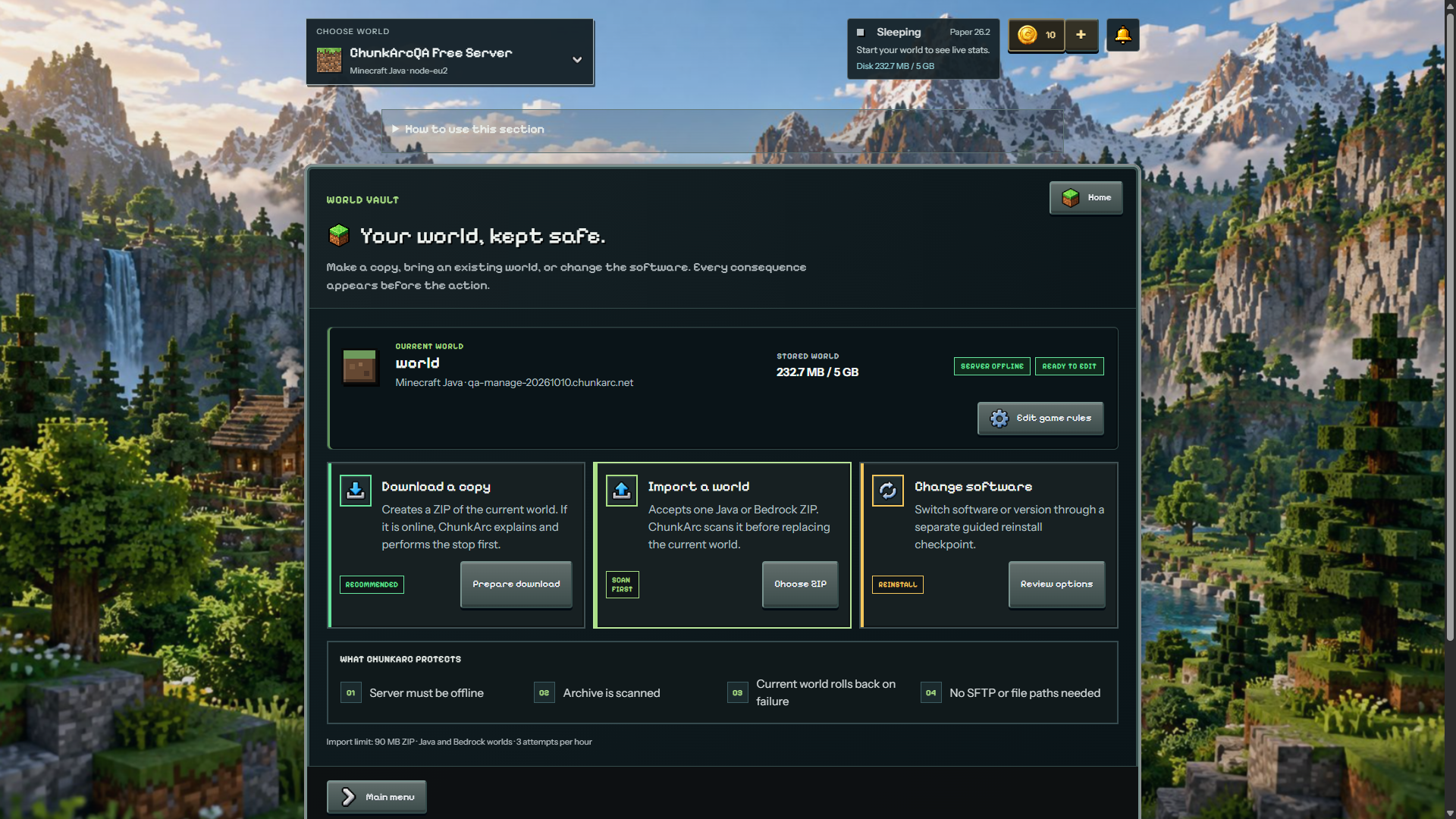
Manage world separates downloading, importing and changing software. Read the consequences and keep a recovery copy before replacing a world. The checked Java import accepts Java/Bedrock ZIPs, with scanning, a 90 MB limit and three attempts per hour. Check the current game-specific screen rather than applying this limit everywhere.
Friends and co-hosts
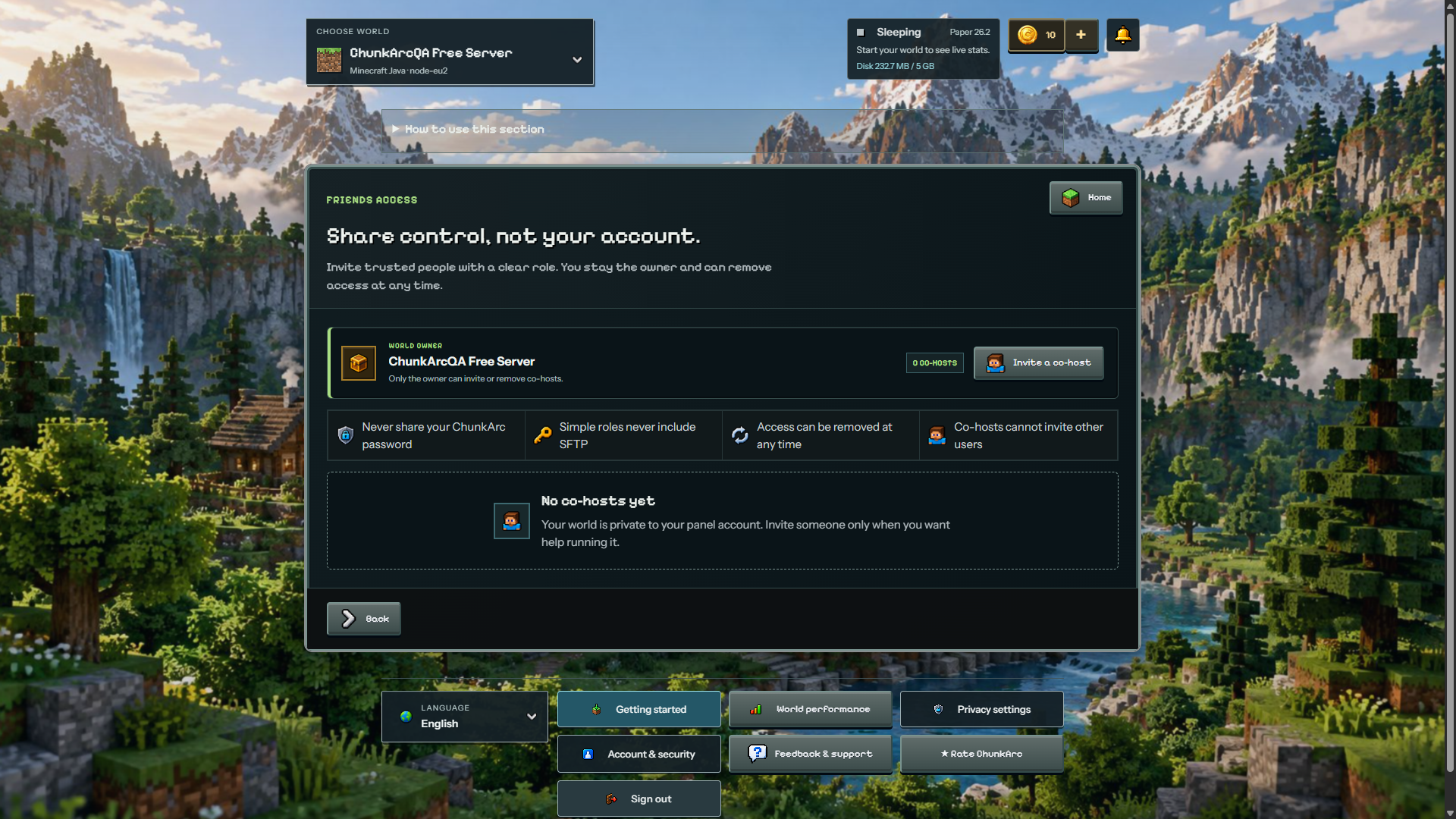
A co-host manages the panel; an invited player joins the game; an operator runs privileged game commands. These are different roles. The owner can invite or remove co-hosts. Never share your password. Simple co-host roles do not include SFTP or inviting other users.
Arc Store and Arc Rewards
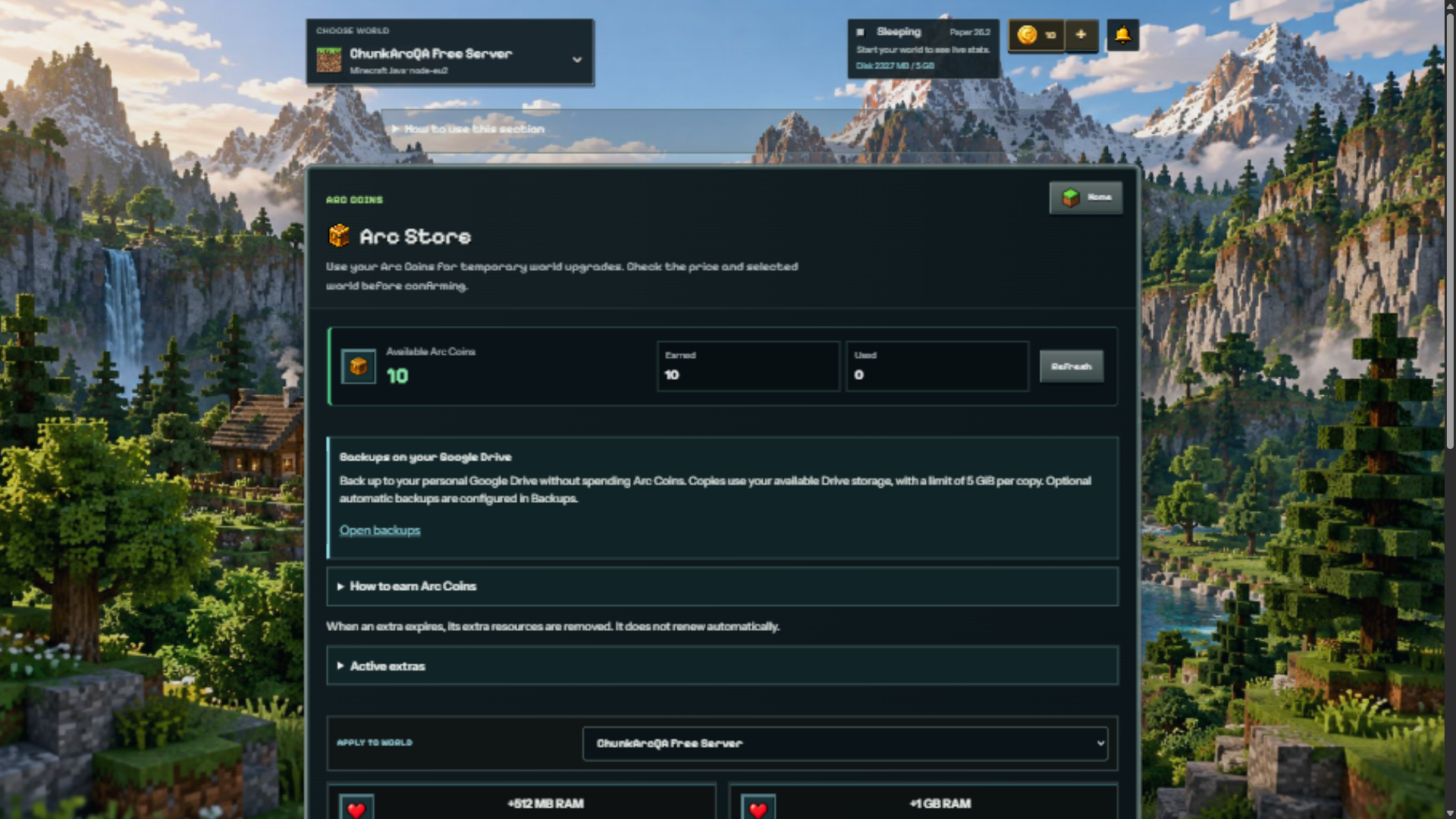
Check the selected world, cost and duration before confirming an extra. Extras expire without automatic renewal. Drive backups do not cost Arc Coins. Rewards depend on the displayed eligibility and verified progress; an unavailable player reading is not proof of earned playtime.
Community, activity and support
Community allows messages and images: keep private information out. Activity records account/world actions, not connected-player counts. Help & advanced offers troubleshooting paths. Feedback & support lets you review a connection summary before sending it; check every message and attachment first. No private community or account history is pictured here.
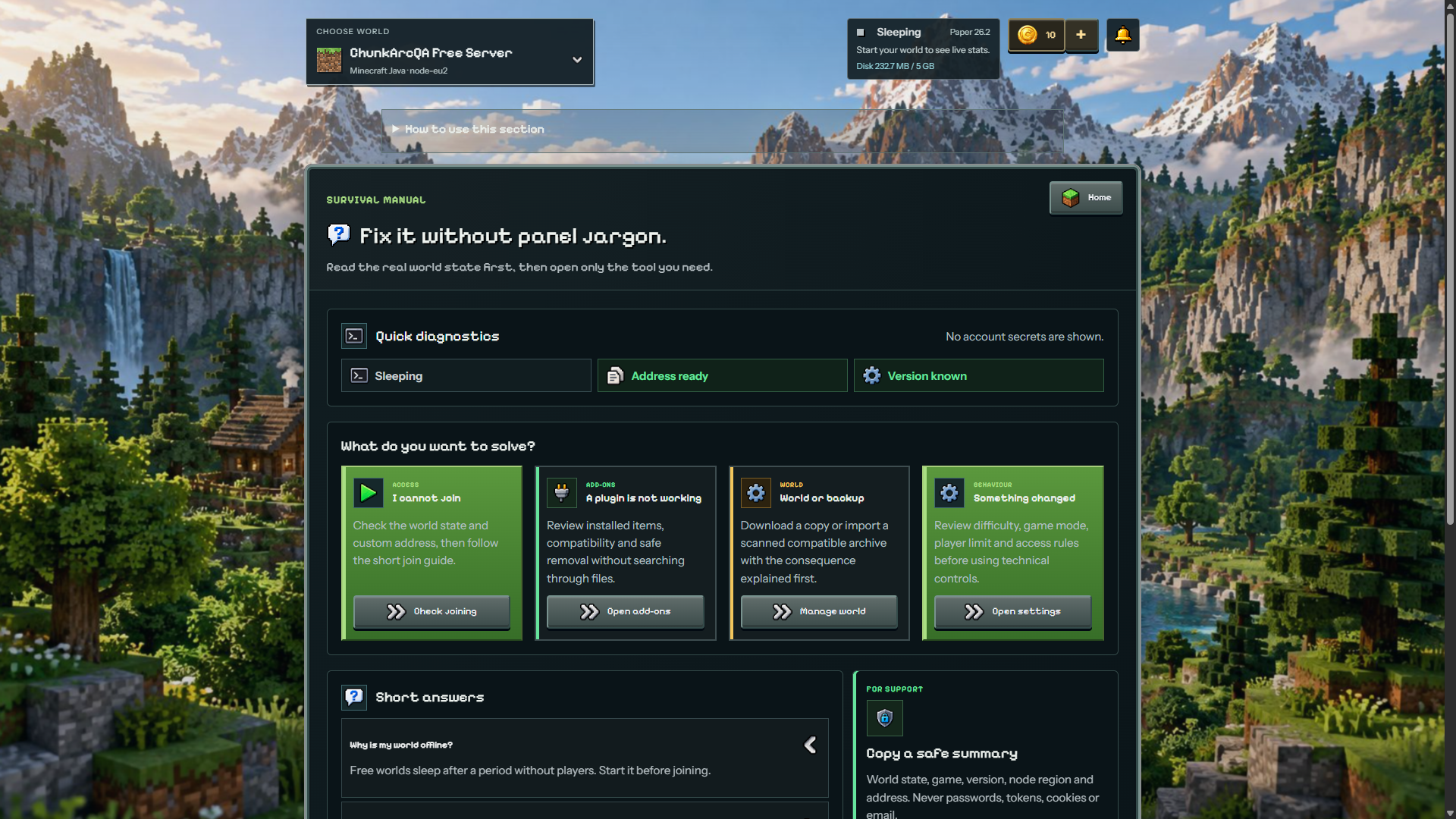
Privacy, security and Getting started
Privacy settings reopens optional analytics choices; Only necessary does not prevent server use. Account & security contains connected sign-in methods, password and authenticator tools. Never share recovery codes. Changing a password signs out other browser sessions. Getting started reopens the tour; reading it does not start a server.
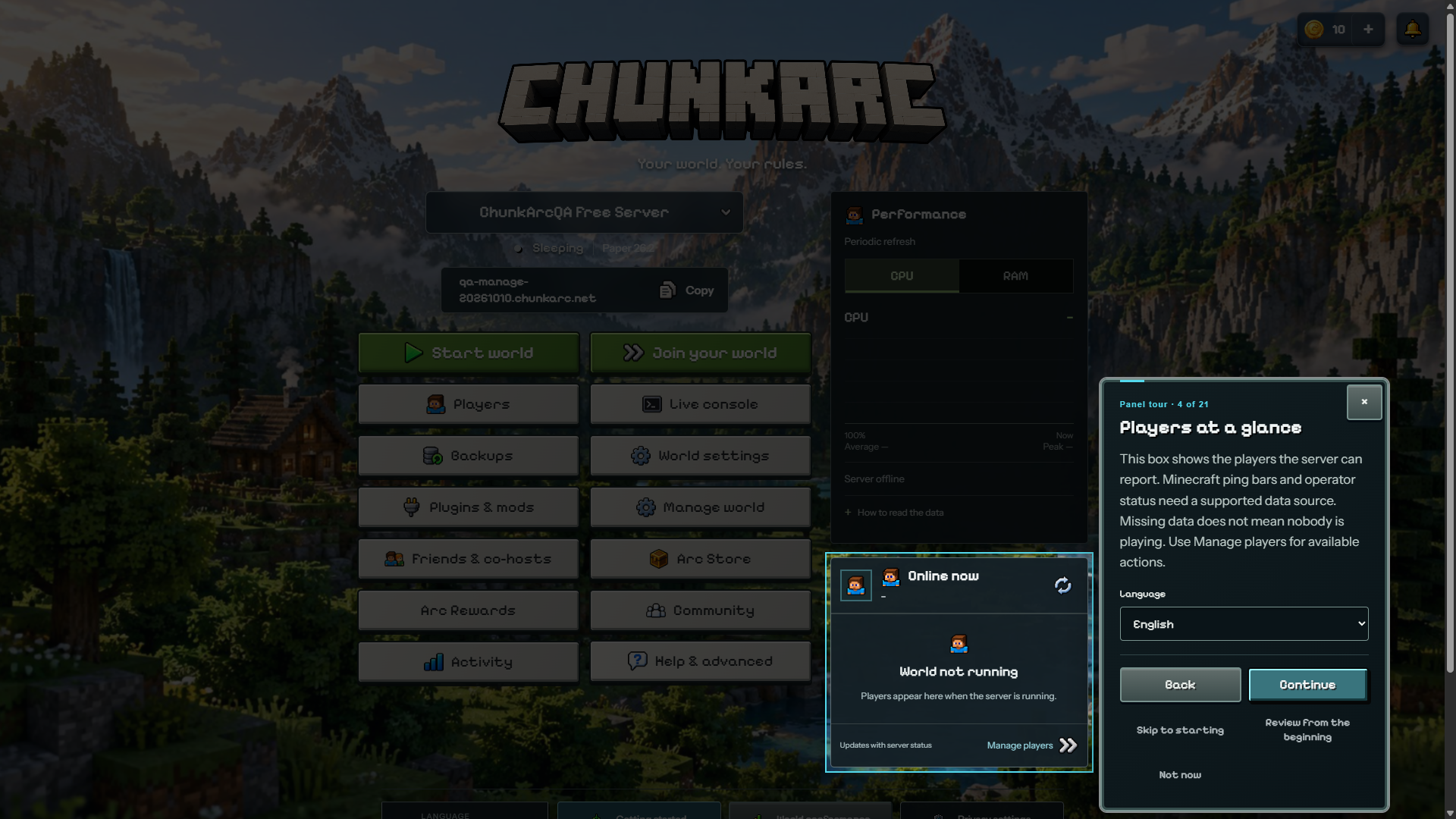
Terraria: join the correct game
For a vanilla server, use Terraria rather than tModLoader and check version compatibility. Once Online, choose Multiplayer → Join via IP, select a character, enter the address without a port, then the exact port shown in Manage. A configured version label is not a running-server check.
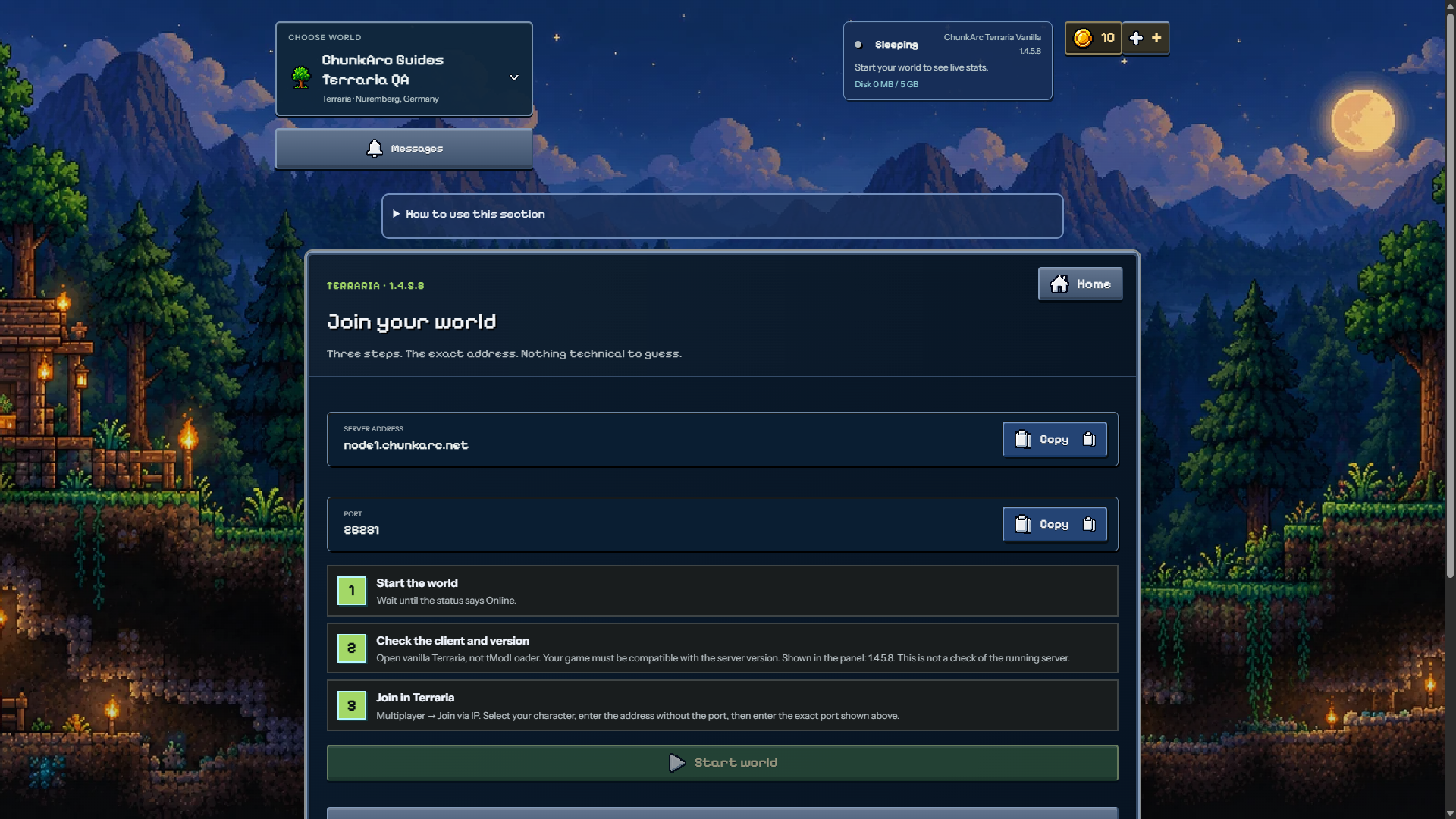
Terraria world files
World management shows .wld files, 64 MiB per file and 90 MiB total, with three shared upload/new-world operations per hour. tModLoader requires both matching world files; a world upload does not install mods. Only the owner can change worlds. The pictured co-host cannot perform that operation.
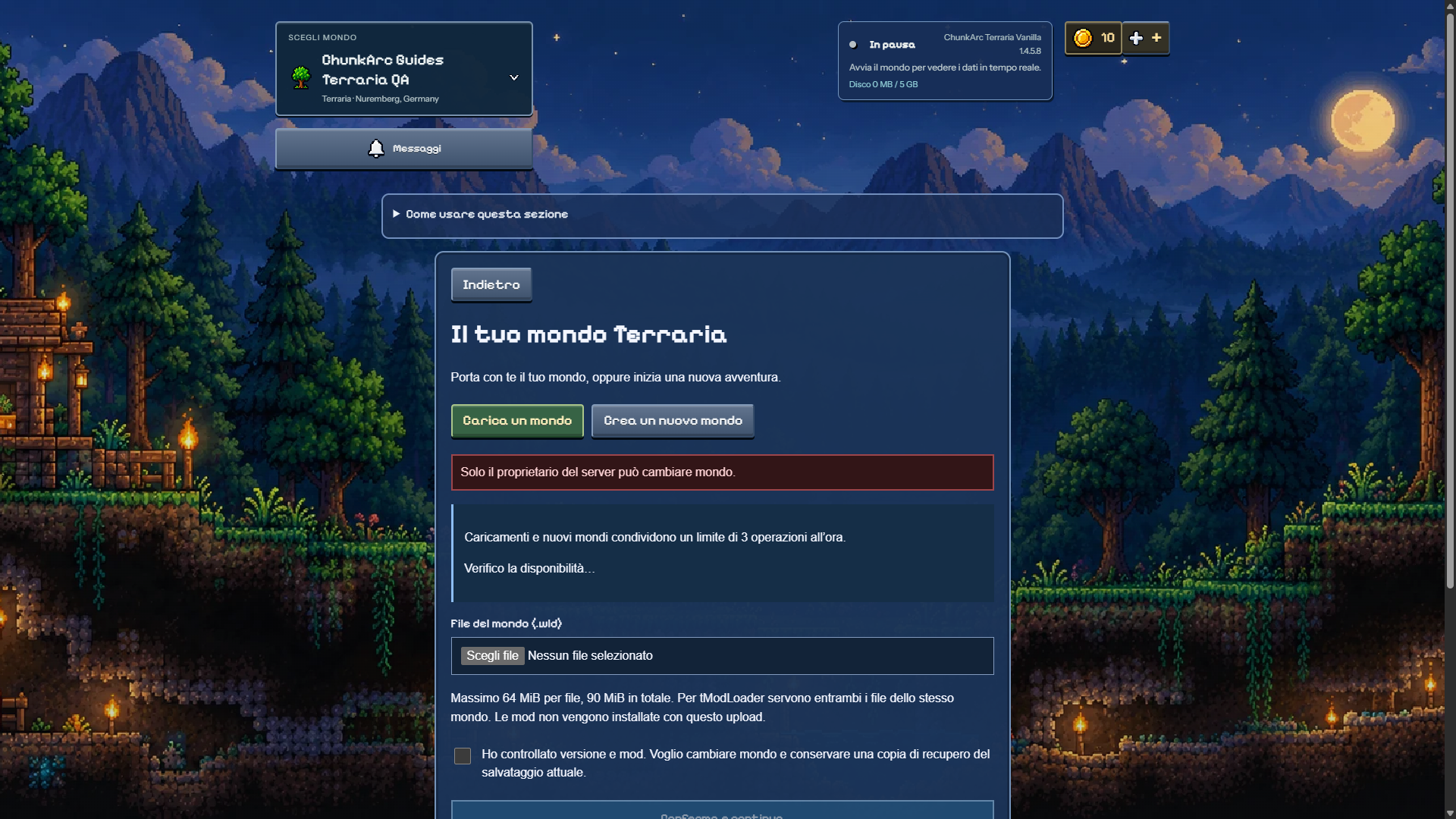
Bedrock: separate address and port
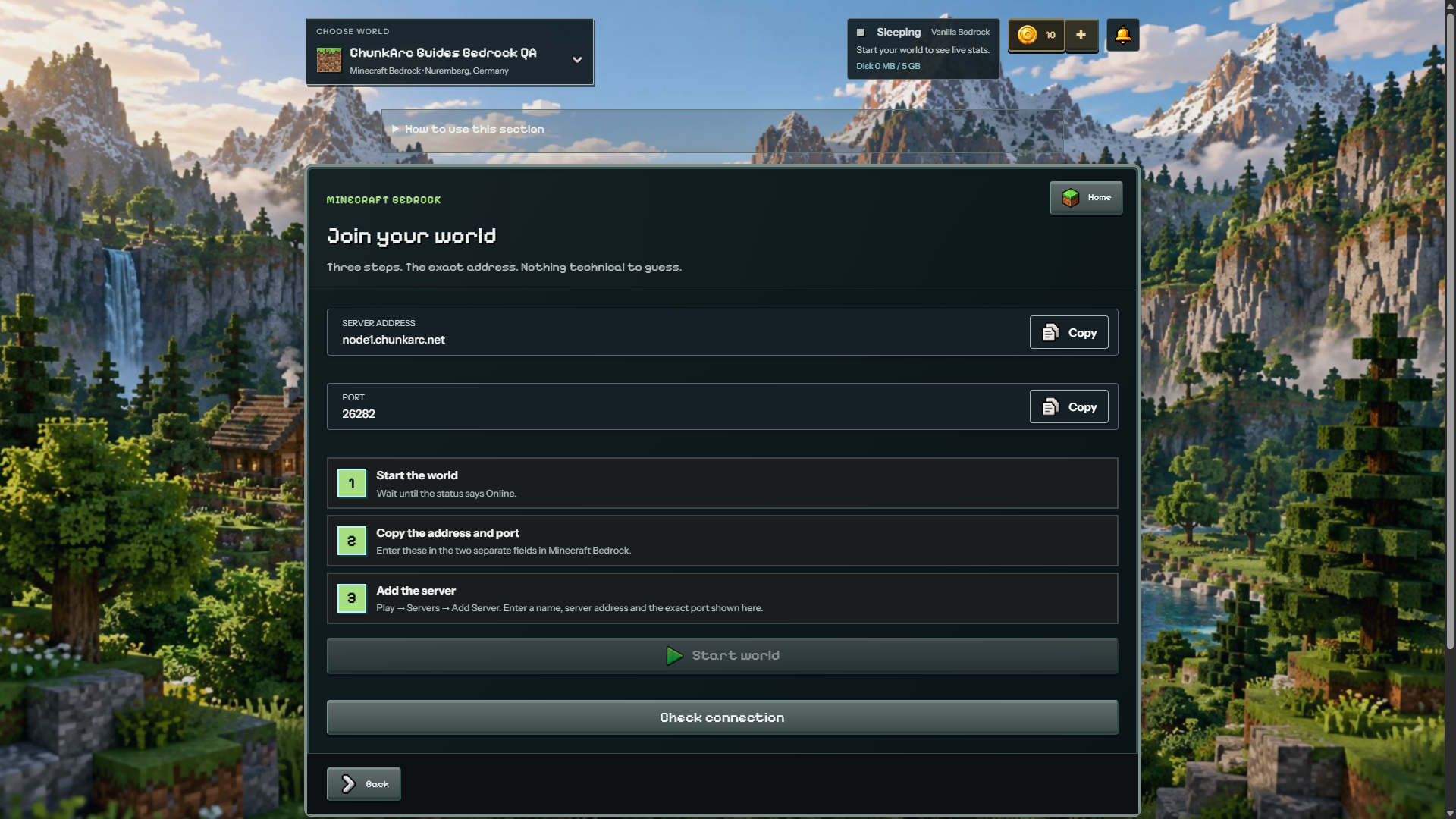
Use Minecraft Bedrock. Once Online, open Play → Servers → Add Server where your client offers it. Enter the address and exact port in separate fields. Use your own world values. Vanilla Bedrock in this check does not support the safe Plugins & mods installer; Java plugin/mod instructions do not apply. Settings also differ from Java.