
Zip your world folder. Stop the server, open ChunkArc Manage, go to Manage world and press Choose ZIP under Import a world. Manage scans the ZIP and only then replaces the current world. The limit is 90 MB per ZIP.
1. Make a ZIP of your world
- Java Edition: open the
savesfolder in your Minecraft folder. Each world is a folder with alevel.datfile inside. Zip that folder. - Bedrock Edition: export the world from Minecraft as a
.mcworldfile, or zip the world folder that containslevel.datand thedbfolder.
Keep the ZIP under 90 MB. You can try 3 times per hour.
2. Import it in Manage
- Stop the server. The import only runs while it is offline.
- On the home screen press Manage world.
- Press Prepare download first if you want to keep the current world.
- Under Import a world, press Choose ZIP and pick your file.
Manage scans the archive before it touches anything. If something fails, the current world comes back.
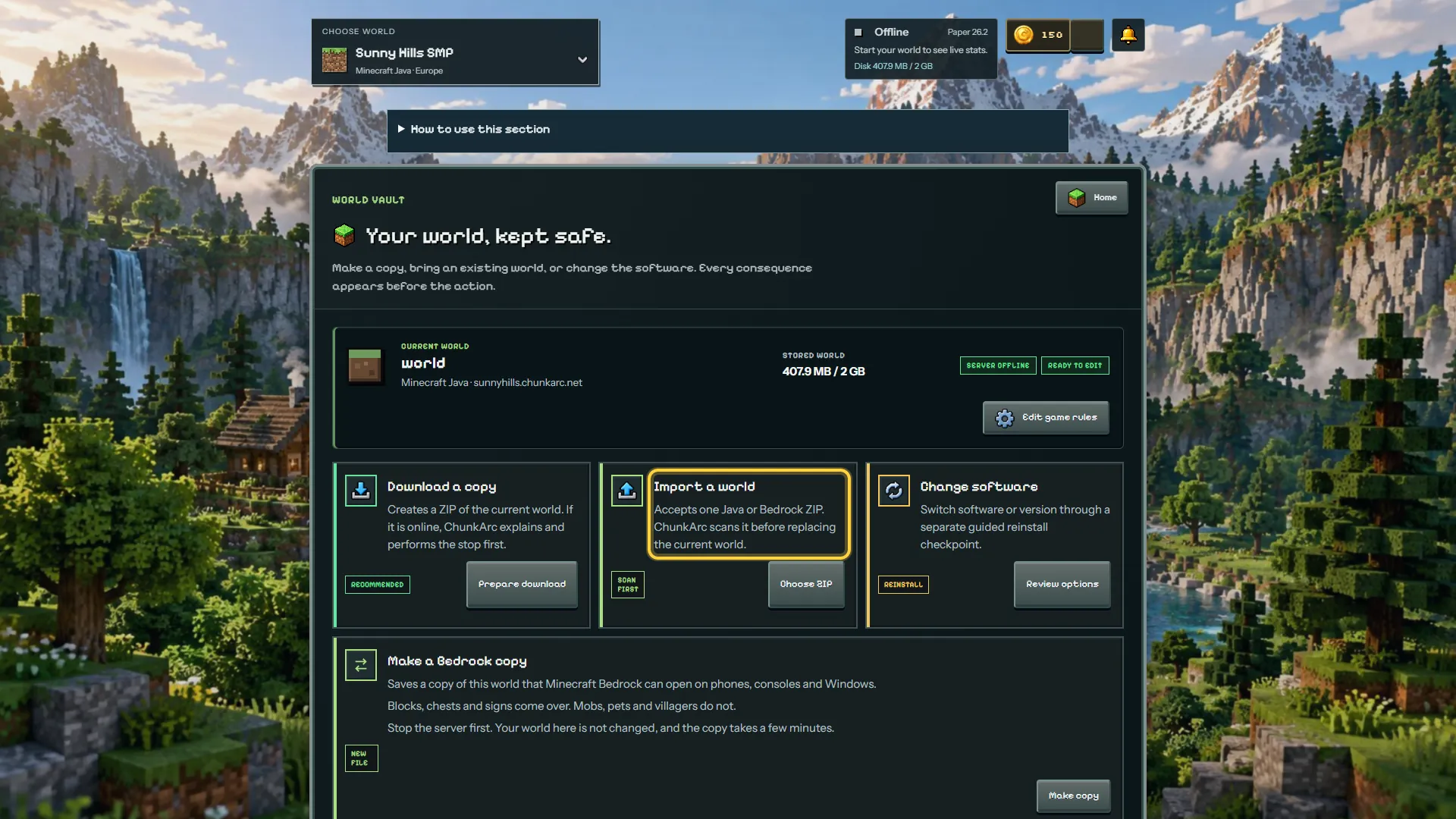
3. Start and play
Press Start world. Your builds, inventory and progress are on the server. Send friends the address from Join your world.
Have a world from the other edition?
In Manage world you can make a Bedrock copy of a Java world, or a Java copy of a Bedrock world. Blocks, chests and signs come over. Mobs, pets and villagers do not.
Common questions
My world is bigger than 90 MB. What now?
Remove unused dimensions or old region files you do not need, or start from a smaller copy. Large worlds also fill the 5 GB of storage quickly.
Can I import a Terraria world here?
Terraria uses a different screen. Read the Terraria world upload guide.
Does the import delete my current world?
It replaces it after the scan passes. Download a copy first if you want to keep it.
Bring your world online
Import a ZIP, start the server, play together.
Open Manage